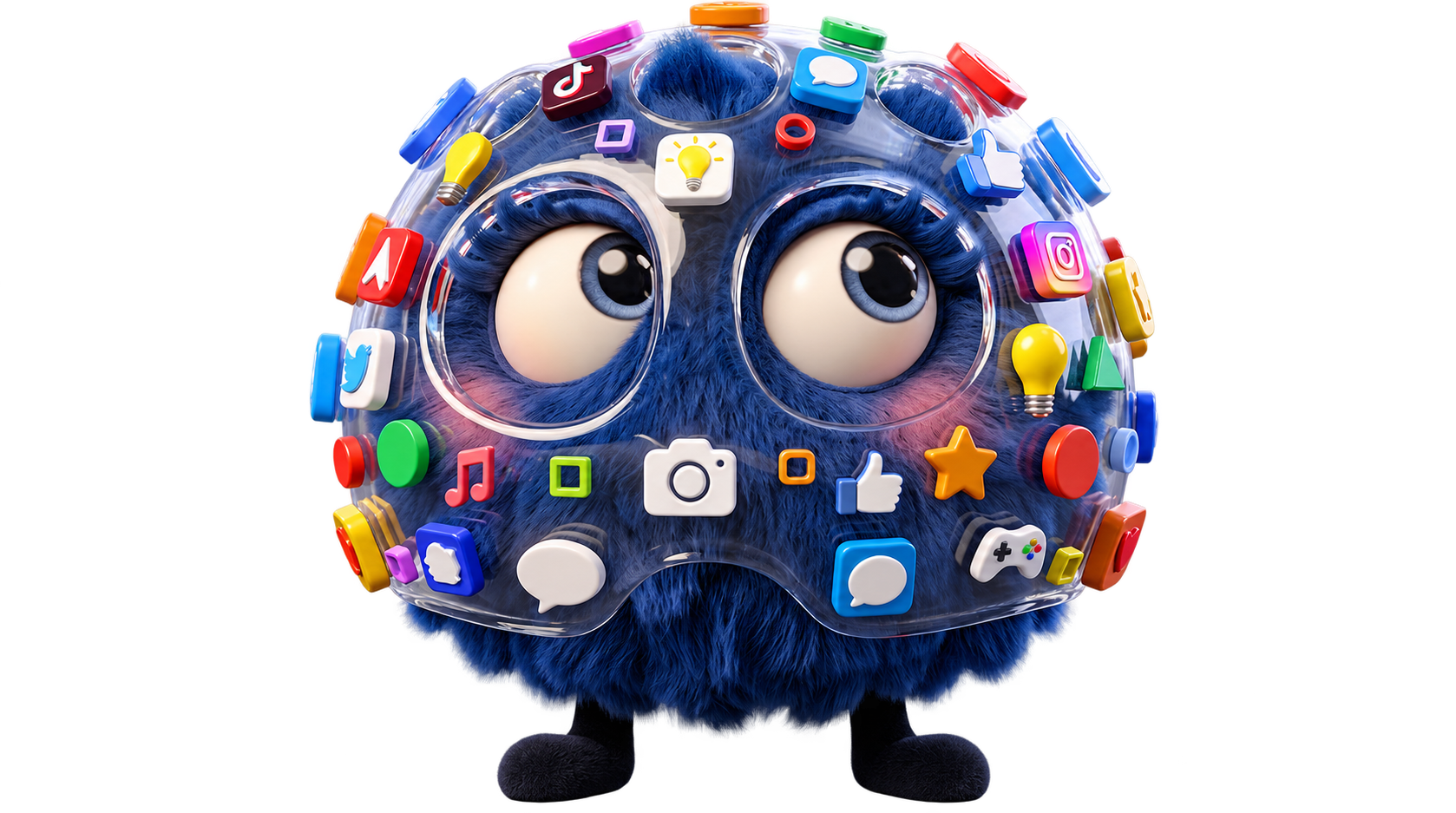
Why is iPhone privacy so important?
Our smartphones now store our entire lives: family photos, private messages, banking information, and location history.
Fortunately, Apple has built straightforward privacy controls into iOS. Whether you own a brand-new iPhone or a refurbished model, here is our guide to securing your personal information.
atelier
4 privacy settings to check immediately
Head to your iPhone Settings to adjust these options:
- Location Services: Settings > Privacy & Security > Location Services. Only share location with apps that genuinely need it (maps, GPS).
- Photos Access: Choose to share « Selected Photos » instead of your entire library.
- App Tracking: Turn off « Allow Apps to Request to Track » to stop apps from tracking you for ads.
- Hide My Email: Use this feature with iCloud+ to generate unique aliases and avoid spam.
Table: Recommended App Permissions
Which permissions to grant based on app category?
| App Category | Location Access | Photo Library Access |
|---|---|---|
| Navigation & Maps (Google Maps, Waze) | While Using the App | None |
| Social Media (Instagram, WhatsApp) | Never or Ask | Limited Selection |
| Games & Utilities | Never | None |
iOS Safety Check for emergency situations
If you need to quickly cut off all data sharing:
- ✓Go to Settings > Privacy & Security > Safety Check.
- ✓Select « Emergency Reset » to immediately revoke all access granted to people and apps.
- ✓Update your passcode and Apple ID password.
What should I do if my iPhone is lost or stolen?
Log in immediately to icloud.com/find from another device to turn on Lost Mode, locate the iPhone, or erase its data remotely to protect your privacy.
MediaStreet Workshop
Need help securing or resetting your iPhone?
Locked accounts, secure factory resets, or confidential data transfer: our technicians are here to help.
Get assistance at the workshop