
Why adopt keyboard shortcuts daily?
Whether you use a business laptop for work or a personal PC at home, the keyboard is not just for typing text.
Keyboard shortcuts are key combinations that immediately execute a command without searching through menus with your mouse. Adopting them will save valuable time and greatly improve your daily comfort.
atelier
The 5 essential shortcuts you must know
These key combinations work in almost every software (Word, web browsers, file folders):
- Ctrl + C (or Cmd + C on Mac): Copy the selected text or item.
- Ctrl + X (or Cmd + X on Mac): Cut the item (move it).
- Ctrl + V (or Cmd + V on Mac): Paste the copied or cut item.
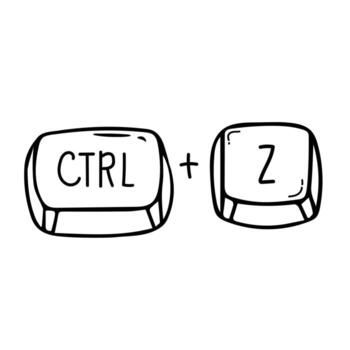
- Ctrl + Z (or Cmd + Z on Mac): Undo the last action (your best friend when a mistake happens!).
- Ctrl + S (or Cmd + S on Mac): Save the current document.
Comparison Table: Windows vs. Mac
Shortcut equivalencies based on your operating system.
| Desired Action | Windows Shortcut | Mac Shortcut |
|---|---|---|
| Select All | Ctrl + A | Cmd + A |
| Find a word | Ctrl + F | Cmd + F |
| Take Screenshot | Windows Key + Shift + S | Cmd + Shift + 4 |
| Lock Screen | Windows Key + L | Cmd + Ctrl + Q |
3 tips to browse the web faster
Use these keys in Chrome, Edge, or Safari:
- ✓Open a new tab: Ctrl + T (or Cmd + T).
- ✓Reopen an accidentally closed tab: Ctrl + Shift + T (or Cmd + Shift + T).
- ✓Switch between open applications: Alt + Tab (or Cmd + Tab).
What if some keys on my laptop keyboard stop responding?
If a physical key stops working or liquid was spilled on your keyboard, the keyboard module usually needs to be cleaned or replaced. Stop by our MediaStreet workshop for a hardware diagnosis.
MediaStreet Workshop
Experiencing keyboard issues on your laptop?
Stuck keys, layout configuration issues, or full laptop keyboard replacement: our technicians repair your PC or Mac quickly.
Request a keyboard repair